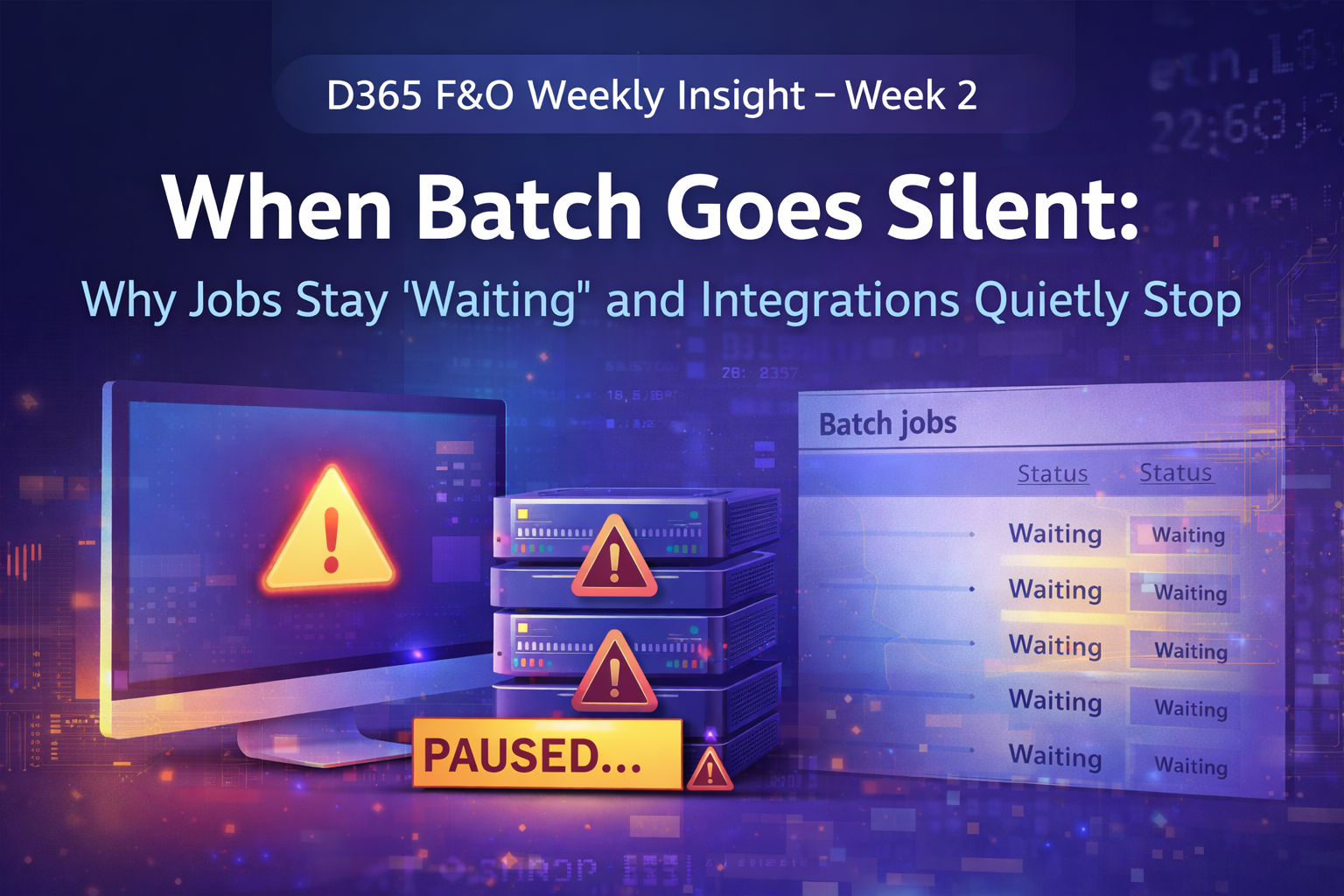
When Batch Goes Silent: Why Jobs Stay “Waiting” and Integrations Quietly Stop
After running stable for weeks, everything suddenly looks… normal.
No errors.
No alerts.
No red flags.
But then the business asks a dangerous question:
“Why didn’t yesterday’s data arrive?”
Welcome to one of the most deceptive production issues in Dynamics 365 Finance & Operations.
What teams usually notice first
The symptoms rarely appear all at once:
- Batch jobs remain stuck in Waiting
- Scheduled processes don’t execute
- DMF imports/exports show no progress
- Integrations dependent on batch execution stop delivering data
The system UI looks healthy — but nothing is actually running.
This is the kind of issue that doesn’t fail loudly.
It fails silently.
Why this is especially risky
Batch is the heartbeat of D365 F&O:
- Data Management Framework (DMF)
- Recurring integrations
- Periodic processing
- Cleanup jobs
- Reporting pipelines and data refresh dependencies
When batch stops, business outcomes disappear, not errors.
That’s why this issue often surfaces late — after downstream systems or reports already missed their windows.
What’s really happening (root cause)
Batch execution in D365 F&O relies on background batch services and batch server health.
When the Batch job service becomes unhealthy or crashes, jobs can remain indefinitely in Waiting and never transition to execution.
From the system’s point of view:
- The job exists
- The schedule is valid
- No failure is recorded
From the business point of view:
- Nothing happens
DMF is particularly sensitive to this condition because it relies heavily on background execution. When batch services aren’t running correctly, DMF may appear idle or intermittently fail without clear messaging.
How to confirm the issue (fast, production-safe checks)
1️⃣ Check batch job behavior
Go to:
System administration → Inquiries → Batch jobs
Look for:
- A growing number of jobs in Waiting
- Jobs with old “Created date/time” but no execution
- Critical jobs missing expected completion windows
If jobs are piling up but never executing, batch processing is effectively stalled.
2️⃣ Correlate with missing outputs
Cross-check:
- DMF execution history
- Integration file timestamps
- Power BI or downstream data refresh schedules
If outputs stopped at the same time batch jobs began waiting, you’ve found your root cause.
The fix (what actually works)
Step 1 — Restore batch execution
In cloud-hosted environments, recovery usually involves restoring batch service health (for example, via environment service restart through your admin operations flow).
Once healthy:
- Jobs should move from Waiting → Executing
- Backlogs should begin clearing
The key signal is movement, not just job status.
Step 2 — Let the backlog drain safely
After recovery:
- Temporarily stagger high-volume jobs
- Reduce frequency of heavy batch tasks
- Avoid large DMF runs during peak business hours
This prevents batch from immediately overwhelming itself again.
Preventing a repeat (this is the real win)
This issue is common because it’s not monitored by default.
A simple daily check can prevent hours of investigation later:
- Oldest batch job in Waiting
- Count of jobs waiting longer than expected
- Confirmation that at least one critical batch job executed successfully in the last cycle
Once teams add this to their operational checklist, this problem stops being a surprise.
Production takeaway
The most dangerous failures in D365 F&O aren’t the ones that throw errors.
They’re the ones where:
Everything looks fine — but nothing runs.
Batch health is one of those quiet fundamentals that separates reactive support from stable operations.
📌 Coming up next
In future Weekly Insights, we’ll dig into:
- Integration retry storms and how they amplify failures
- Power BI trust issues caused by silent data gaps
- Upgrade-side effects that don’t surface until weeks later
If you’re operating D365 F&O in production, these are problems you’ll eventually face — or already have.